
The plain-English, step-by-step way to add your business to Google Maps, claim it, verify it, and actually get found by nearby customers.
How you add your business to Google Maps is by creating a Google Business Profile at google.com/business, claiming it, and verifying you own it, then completing the profile so nearby customers find you. It's free, it takes about fifteen minutes to set up, and it's the same first step our Google Business Profile optimization program builds on. I'm Joshua Albanese, founder of Spearleaf, and this is the exact process I walk owners through.
I've built six businesses from zero using organic search, and the single most common question I get from local owners is some version of "how do I even get on the map?" Not how to rank, not how to beat a competitor. How to get the pin to show up at all. So let's do it properly, start to finish, no jargon.
How do I add my business to Google Maps?
You add your business to Google Maps by creating a Google Business Profile, which is the free account Google displays on Maps, in Search, and in the local Map Pack. You don't edit Maps directly. You manage the profile, and Google puts it everywhere.
That distinction trips up a lot of owners, so it's worth saying once more plainly. There is no separate "Maps account." The thing you're building is a Business Profile, and Maps is one of the windows it shows through. Google explains this the same way in its own Business Profile help documentation.
Here's the whole path in one breath: create the profile, claim it if it already exists, verify you own it, then fill it out completely. The first three steps get you onto the map. The fourth is what gets you found. Most owners stop after step three and wonder why nothing happens.
Step 1: Create your Google Business Profile
Start at google.com/business and sign in with the Google account you want tied to the business. Use a business email if you have one, not your personal Gmail, so the account survives staff changes.
Click "Add your business to Google" or "Manage now." You'll enter three things that matter most:
- Business name. Type it exactly as it appears on your sign, your invoices, and your website. Don't stuff keywords like "Best Fort Myers Plumber" into the name field. That violates Google's guidelines and can get you suspended.
- Primary category. This is one of the strongest relevance signals you have. Pick the most specific category that describes what you do, not a broad catch-all. "Emergency plumber" beats "plumber" if that's your work.
- Location or service area. Choose whether customers come to you or you go to them. More on that split in the next step, because it's where owners make the most mistakes.
Before you create anything, search Maps for your business name. If a listing already exists, don't make a second one. Skip to claiming it instead.
Step 2: Choose storefront or service-area, and enter your info
Google needs to know if you have a location customers visit or if you travel to them. This choice decides whether your street address shows publicly, and getting it wrong is the most common setup error I see.
- Storefront business: a shop, clinic, salon, or office customers walk into. Enter your full street address. It appears publicly and anchors where you rank.
- Service-area business: a plumber, electrician, mobile groomer, or cleaner who works at the customer's location. Choose "I deliver goods and services to my customers," hide your address, and list the cities or regions you serve.
Some businesses are both, like a bakery with a storefront that also caters. Google allows a hybrid: show the address and add service areas on top of it.
Whatever you pick, enter your name, address, and phone number in one exact format and remember it. That exact wording has to match your website and every other listing later, or the inconsistency quietly works against you.
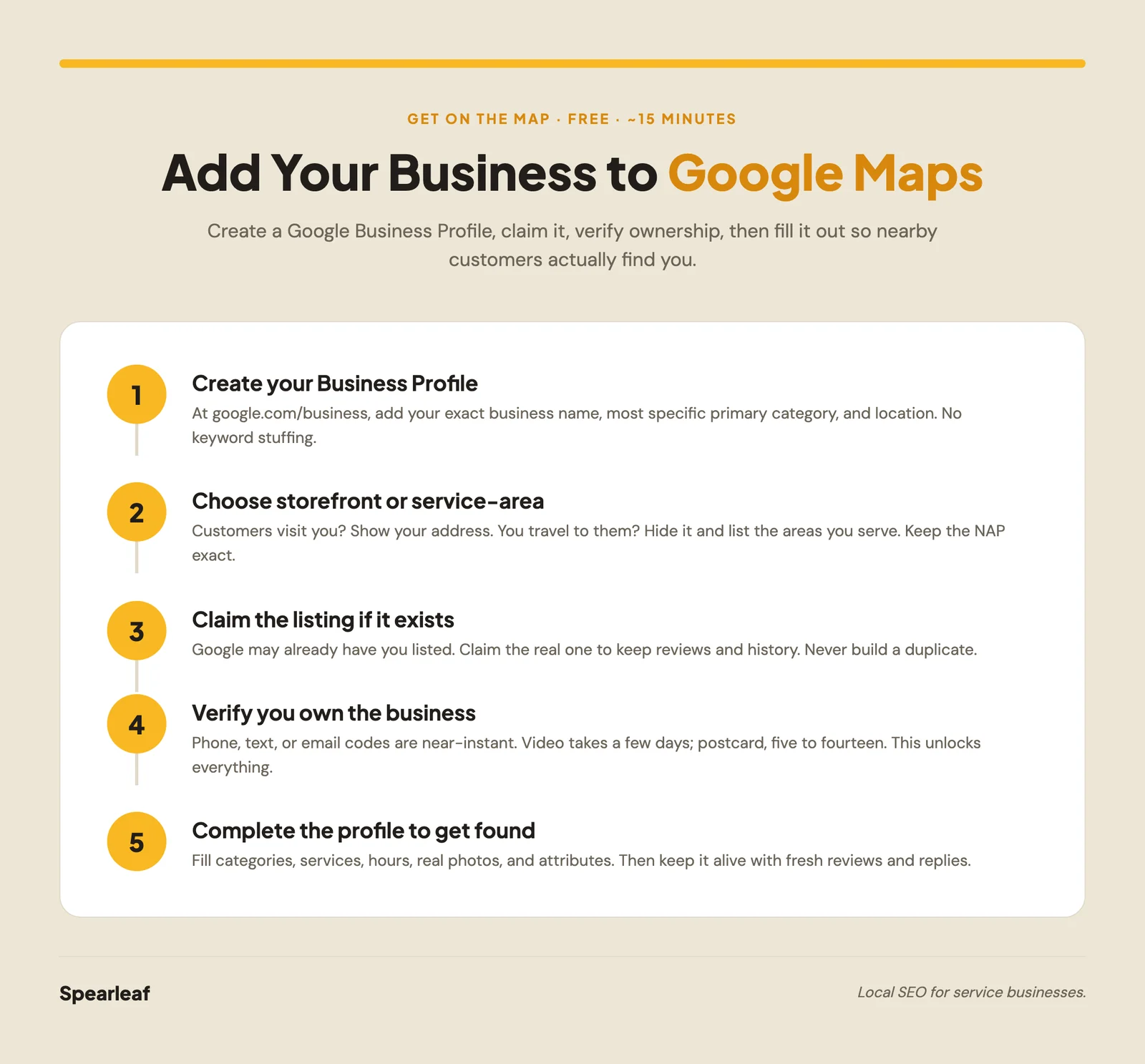
Step 3: Claim your listing if it already exists
Google often creates a basic listing for a business before the owner ever touches it, pulled from directories, maps data, or customer activity. If you search and find yourself already on the map, you claim that listing rather than starting fresh.
On the existing listing, look for "Claim this business" or "Own this business?" and click it. Google walks you into the same verification flow a new listing uses. Claiming the real one keeps your reviews and history intact, which a brand-new duplicate would lose.
What if someone else already claimed it? That happens with a former employee, a past agency, or occasionally a competitor. Google has a request-access process: you submit a claim, the current manager gets a few days to respond, and if they don't, Google can transfer it to you. It's slower, but it's the right path. Don't build a duplicate to get around it, because duplicates split your signals and can both get suspended.
Step 4: Verify you own the business
Verification is Google confirming you're real and you're actually connected to this business. Until it's done, you can't edit most of the profile, and Google usually won't show the listing publicly. This is the step that unlocks everything.
Google offers different methods depending on your business type and history, and you don't get to pick freely. Common options:
- Phone or text: Google calls or texts a code to your listed number. Nearly instant.
- Email: a code arrives at a business email tied to the account. Also fast.
- Video verification: you record a short, unbroken clip showing your location, equipment, or signage that proves you operate the business. Usually reviewed within a few days.
- Postcard: Google mails a code to your address, arriving in roughly five to fourteen days. You enter it to finish.
Enter the code Google gives you and you're verified. If a postcard never arrives, you can request another. If video verification gets rejected, re-record with clearer proof of your name and location. Don't skip this step or let it stall, because an unverified listing is one of the top reasons an owner tells me their business isn't showing up on Google after they thought they were done.
Step 5: Complete the profile so you actually get found
Getting onto the map and getting found are two different jobs. A verified but half-empty profile technically exists and still loses to a competitor who filled theirs out. Google ranks the complete, active listing.
Fill in every field that applies:
- Categories and services. Add secondary categories for your other services, then list the individual services with short descriptions.
- Hours. Accurate regular hours plus holiday hours. Wrong hours frustrate customers and hurt trust signals.
- Photos. Real photos of your work, your team, your storefront, and your equipment. Genuine photos beat stock every time and give Google more to match.
- Description. A plain, honest paragraph about what you do and where. No keyword stuffing.
- Attributes. Things like "women-owned," "wheelchair accessible," or "free estimates" that fit your business.
Then keep it alive. Reviews are one of the ranking signals Google names directly, so ask happy customers right after a good job and respond to every review you get. My guide on getting more Google reviews covers the honest way to build that habit without breaking Google's rules.
What makes a Google Maps listing rank once it's live?
Google ranks Maps listings on three named factors: relevance, distance, and prominence. Everything you do to the profile ladders up to one of them.
Relevance is how well your categories, services, and description match the search. Distance is how close you are to the person searching, which your address or service area sets. Prominence is how known and trusted you are, built through reviews, a complete profile, and links to your site. You can't see Google's exact formula, and anyone selling you guaranteed rankings is guessing, but you can build directly toward all three.
That's where a new listing turns into a found one. If you want the full mechanics of what Google weighs and how owners influence each factor, our Google Map Pack ranking factors guide breaks down all three in detail. It's the natural next read after your profile is live and complete.
The questions I hear most from owners adding their business to Google Maps, answered plainly.
Ready to get found once your listing is live?
Adding your business to Google Maps comes down to five steps: create the Business Profile, claim it if it exists, verify you own it, complete every field, and keep it active with real reviews and photos. Do those and you're on the map. Ranking on it is the next layer, built on relevance, distance, and prominence over the following months. If you'd rather have a team set the profile up correctly and optimize it to rank, our Google Business Profile optimization program does exactly that, with no long contract, just the fundamentals executed consistently.
This article was written by Joshua Albanese, founder of Spearleaf, a local SEO and marketing agency based in Fort Myers, Florida. Joshua has built six businesses from zero using organic search and content, and he leads Spearleaf's SEO, AI search, and local strategy for service businesses across the U.S.
Frequently asked questions
How do I add my business to Google Maps for free?
Adding your business to Google Maps is free. Go to google.com/business, sign in with a Google account, and choose 'Add your business to Google.' Enter your name, category, and either your address or the areas you serve, then follow the prompts to create the profile. You'll then claim it and verify it, which is also free. Google never charges to create, claim, or verify a listing, and anyone offering to add you for a fee is selling you something you can do yourself in about fifteen minutes.
How long does it take to verify a business on Google Maps?
It depends on the verification method Google offers you. A phone, text, or email code verifies almost instantly. Video verification, where you record a short walkthrough, is usually reviewed within a few days. Postcard verification, still used for some businesses, takes about five to fourteen days for the mailer to arrive with your code. Your listing can appear on Maps before verification finishes, but you can't edit it or use most features until you're verified.
Can I add my business to Google Maps without a physical address?
Yes. If you travel to customers, like a plumber, mobile mechanic, or cleaning service, you set up a service-area business instead of a storefront. During setup you choose 'I deliver goods and services to my customers' and hide your street address, then list the cities or regions you serve. Your business still shows in Maps results for those areas without pinning a public address, which is the correct setup for any business that works at the customer's location.
Why is my business not showing up on Google Maps after I added it?
The most common reason is that the listing isn't verified yet, so Google won't display it publicly. Other causes include a duplicate listing competing with the real one, an incomplete profile, or a business too new to have built any ranking signals. Proximity also matters: you show most strongly to searchers near your address or service area. If you've verified and completed the profile and still can't be found, our guide on why your business isn't showing up on Google walks through each fix.
Is Google Maps the same as a Google Business Profile?
They're connected but not identical. Your Google Business Profile is the free account you manage: your hours, photos, services, reviews, and business information. Google Maps and Google Search are two of the places that profile appears to the public. So you don't manage a 'Maps listing' directly. You manage your Business Profile, and Google displays it on Maps, in the local Map Pack, and in Search. Get the profile right and all three surfaces improve at once.
Want your listing to rank once it's live? See how our Google Business Profile optimization program gets you found first.
Learn more →